Reviewing Applications
Reviewers score applications against a fixed set of weighted criteria.
Scope of the review
Reviewers assess only the quality of the AI/robotics solution and its fit to TEF-Health. Eligibility criteria (for example, eligibility for State Aid support) are confirmed by the applicant when the application is created and are not re-evaluated by TEF-Health.
Introduction
Welcome to the TEF-Health Independent Review Board. TEF-Health accelerates the market entry of AI-driven healthcare solutions by providing testing and validation services across the EU. Your evaluations directly influence which SMEs gain access to these services, so a fair and transparent process is essential.
Each review is expected to take roughly 30 minutes, and a typical batch should be completed within the review deadline (see below). Please declare any conflict of interest before evaluating an application.
Before you start
Reviewing begins once a coordinator has accepted your onboarding. Becoming a Reviewer covers the form, the Code of Conduct and the Expert Contract, and what happens between submitting the form and your first assignment.
After you sign in
When you sign in you land on your dashboard at /my/home. The page adapts to
your role: as a reviewer you get two review counters in the statistics row and a
Reviewer card that takes you straight to your review queue.
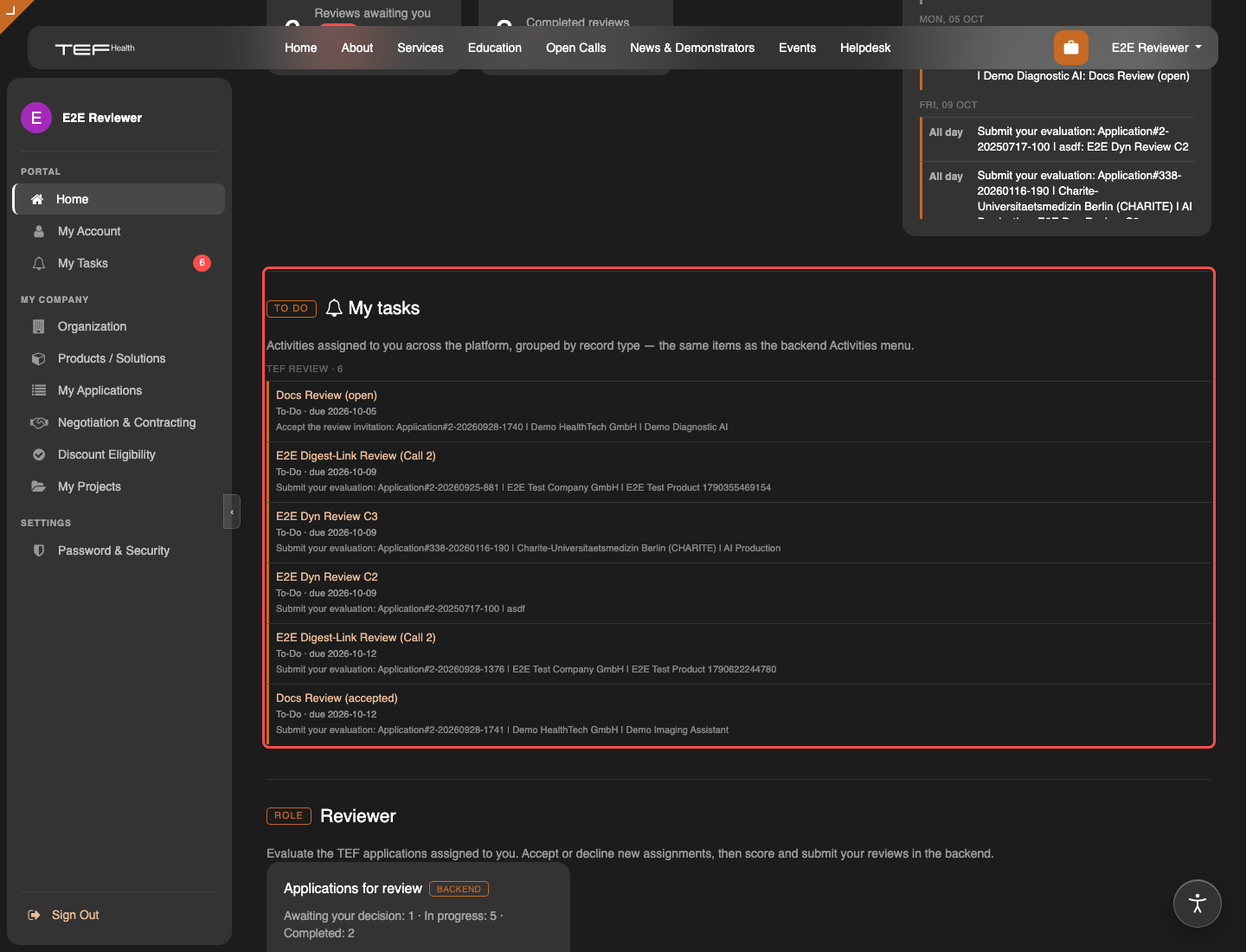
- Reviews awaiting you counts the reviews still on your plate. A red badge shows how many are new — assigned to you but not yet accepted or rejected. Those need your decision first.
- Completed reviews counts the reviews you have already submitted.
- The Applications for review card repeats the same figures — Awaiting your decision · In progress · Completed — and links into your review queue.
Reviewers are internal users, so the queue and the scoring forms open in the backend. Click Applications for review (or Open reviews on the counter) to get there.
Review process
Assignment and notifications
A review record is created for you when a Front Office Agent assigns you to an application. Each review has a submission deadline set two weeks after it is created. You are kept informed through scheduled reminders:
| Notification | Event |
|---|---|
| Acceptance reminder | Reminds you to accept (or reject) an assignment you have not yet acted on. |
| Submission reminder | Reminds you about an accepted review that has not been submitted. |
| Missed deadline | The review is marked Missed Deadline once the submission deadline passes. |
Notifications appear in the platform header and are also emailed to you.
You are only asked to review the calls you agreed to
If you agreed to review a specific call, the Front Office can only assign you to applications from that call — you will not receive review requests from other calls.
Pausing your availability
If you cannot take on reviews for a while — leave, a heavy month, travel — you can pause yourself instead of stepping down as a reviewer. While you are paused the Front Office does not see you in the reviewer picker and cannot assign you further applications.
Open TEF Review → My Availability (or My Account → Preferences at the top right) and tick Pause me for new reviews under Review Availability.
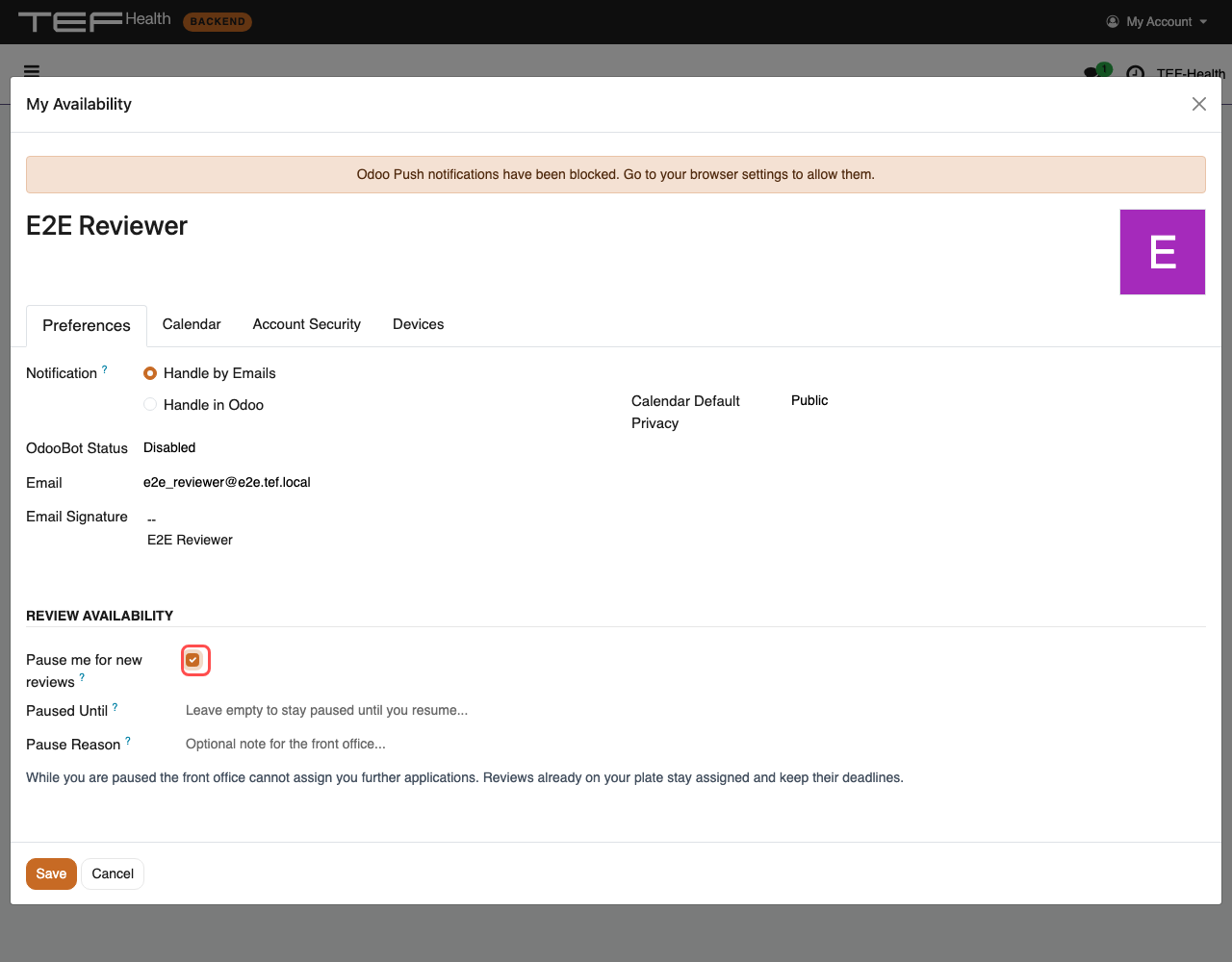
Two optional fields appear:
| Field | Effect |
|---|---|
| Paused Until | You are made available again automatically on that date. Leave it empty to stay paused until you untick the box yourself. |
| Pause Reason | A short note so the Front Office knows why, e.g. parental leave until October. |
Untick the box at any time to become available again.
Reviews you already have stay yours
Pausing only stops new assignments. Anything already on your plate keeps its deadline and its reminders. If you cannot finish a review you have been given, Reject it (see below) so the Front Office can reassign it, or say so in the review's Chatter.
Open your assigned applications
Open your review queue from the Applications for review card on your dashboard, from the link in a notification email, or from the left-hand TEF Review → Applications for Review menu.
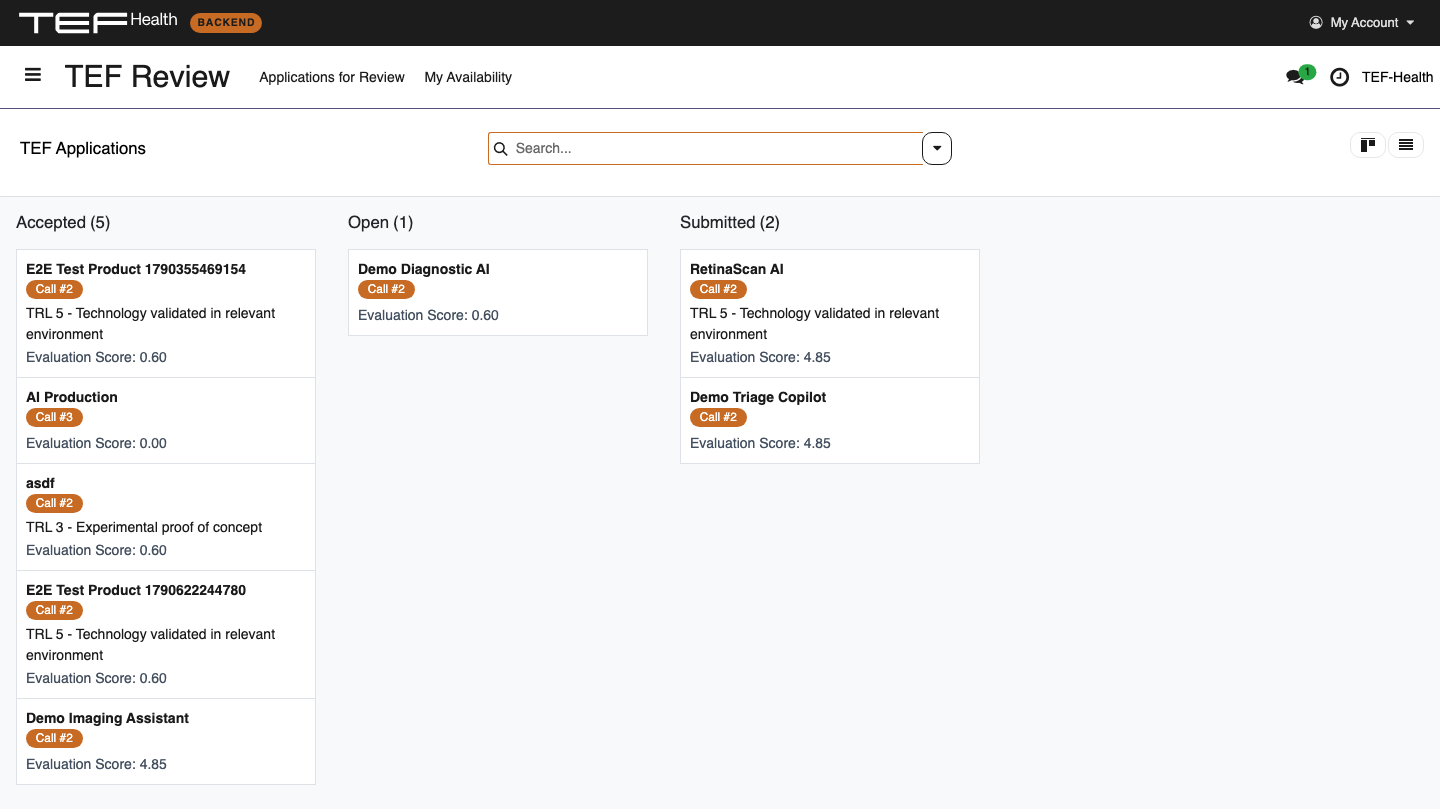
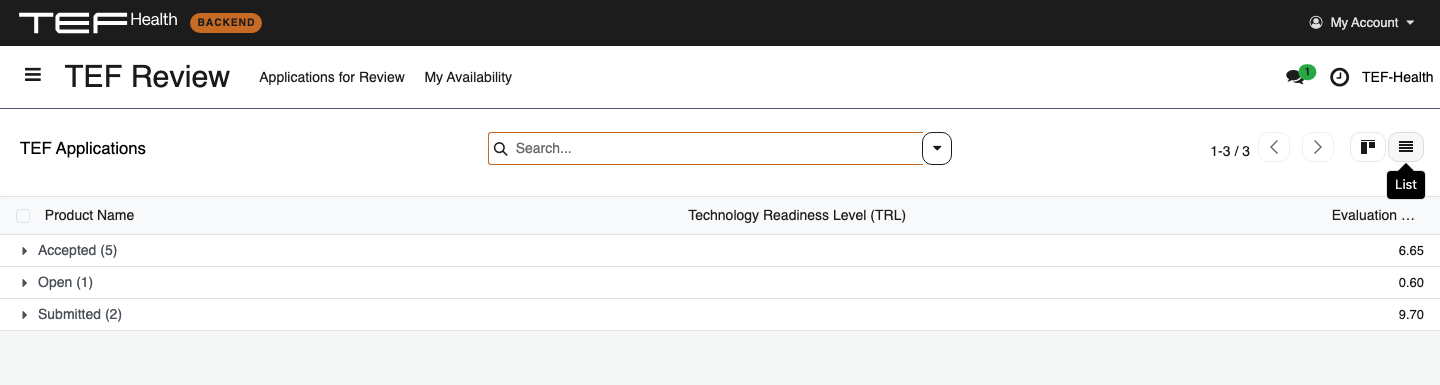
The queue is a Kanban board grouped by review status (Open, Accepted, Submitted, Rejected, Missed Deadline), so the reviews awaiting your decision sit together in the Open column. A list view is also available; toggle between the views using the buttons near the top-right of the page.
Accept or reject a review
To protect the integrity of the process you must declare any conflict of interest.
- When you open a review you can Accept Review to begin, or Reject Review if you identify a conflict of interest. Rejecting removes you from the assignment and notifies the Front Office, who will reassign the application.
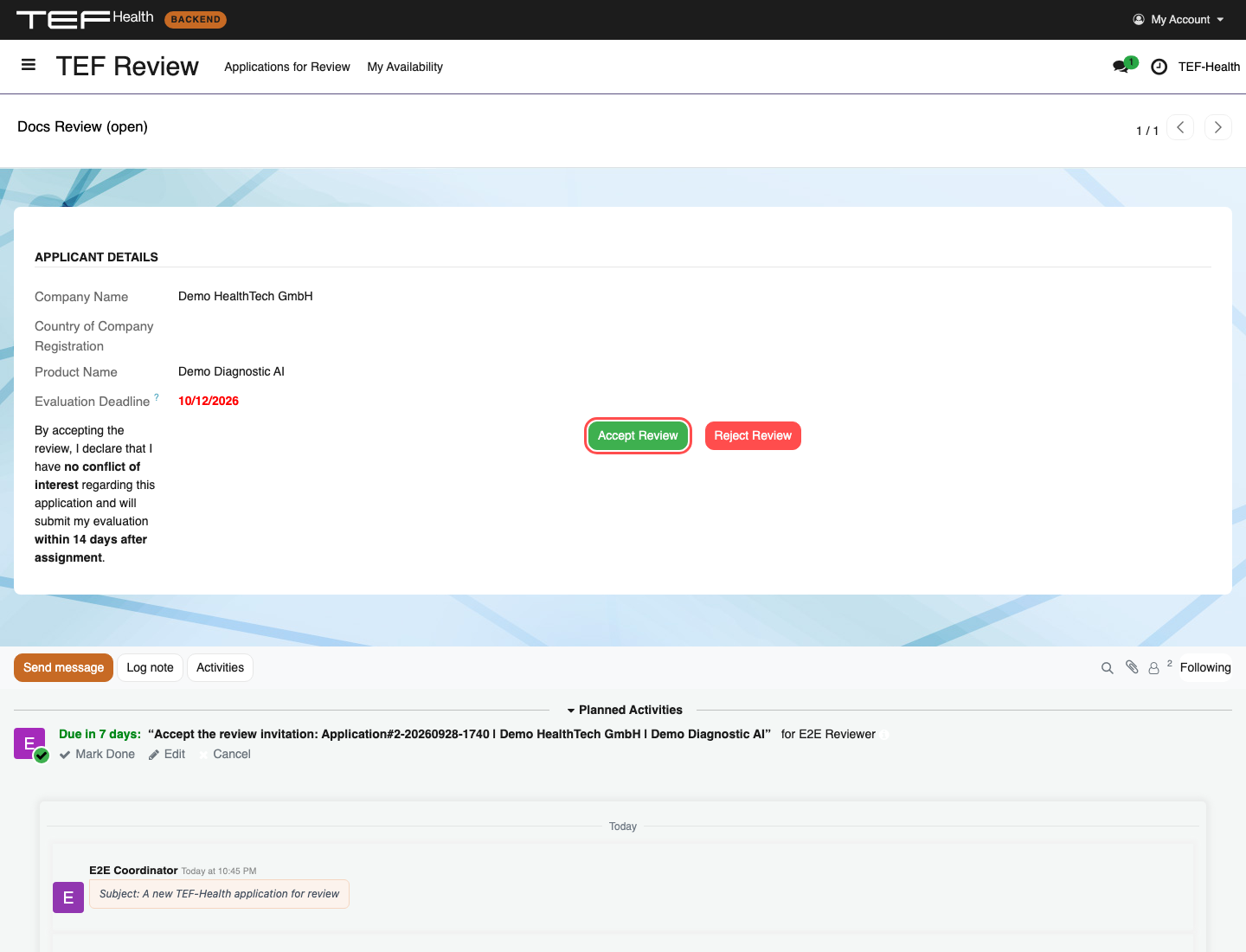
- A review can also be rejected after you have accepted it (or after the deadline was missed) if a conflict surfaces later — the Reject Review button remains available.
Conflict of interest
Declaring a conflict of interest is mandatory if any bias is identified. This protects both the review process and the applicant.
Review and score
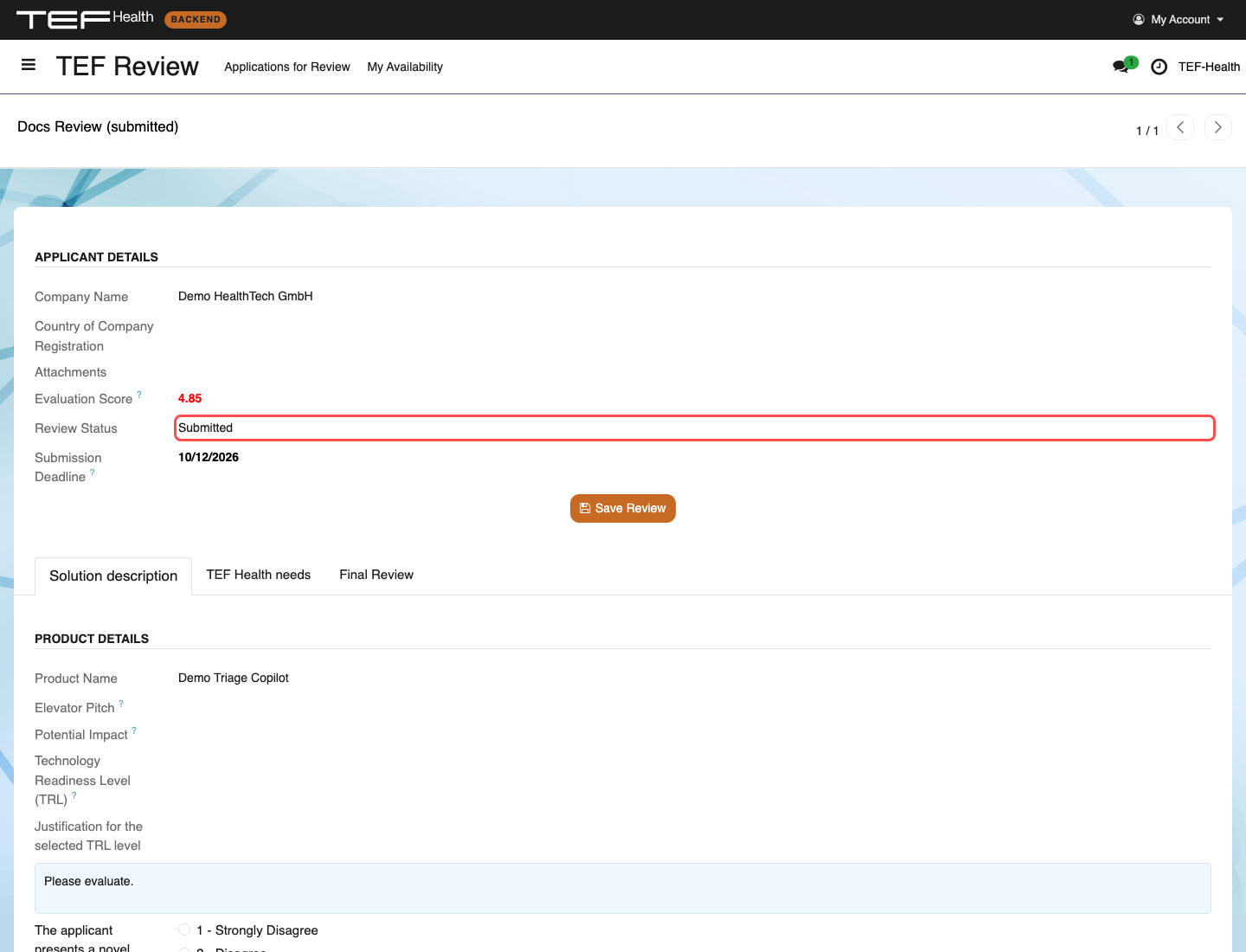
Each application is linked to a reviewer form that shows a reduced view of the application with confidential information removed. Work through the form from top to bottom and across its tabs.
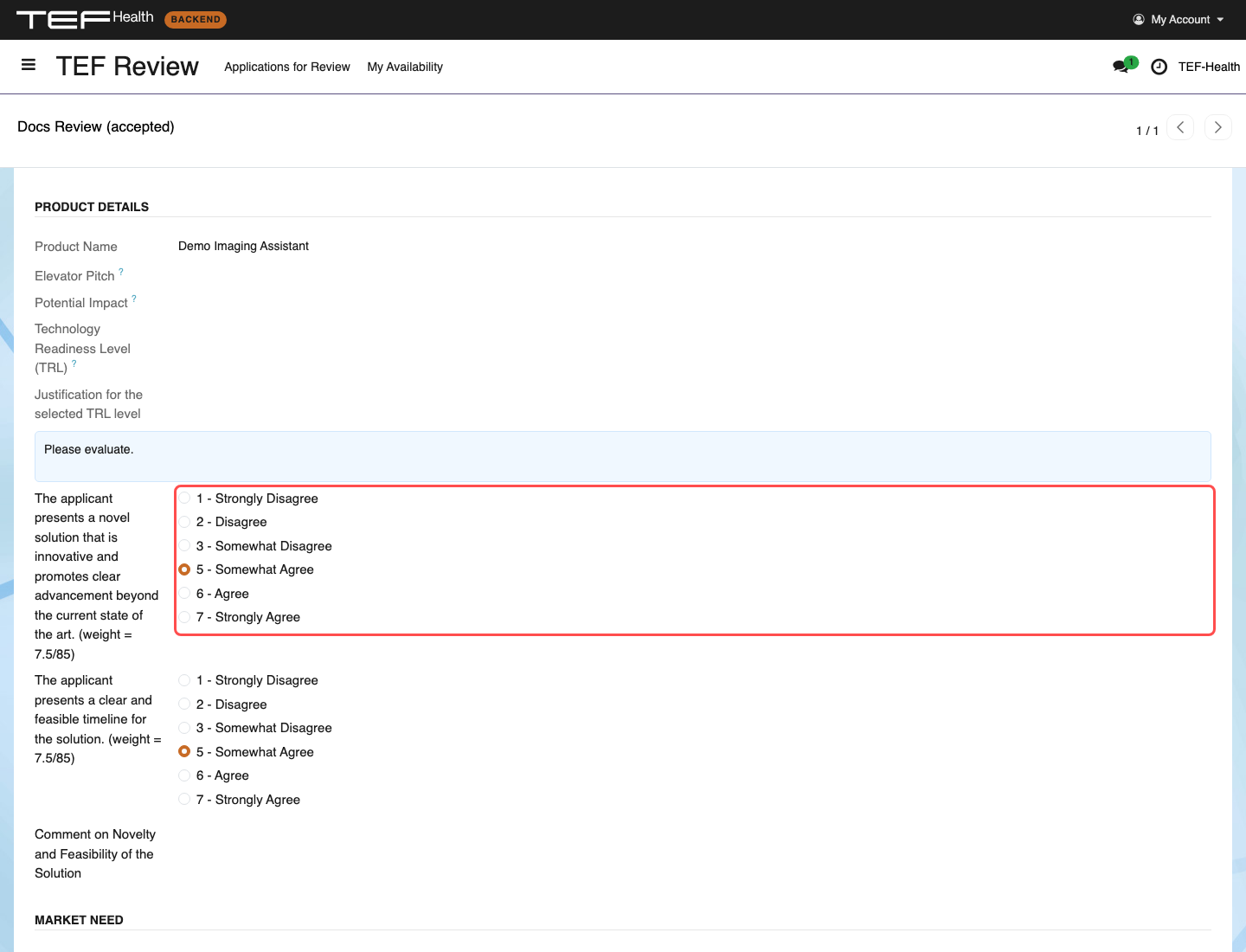
You score the application against the following weighted criteria, each on a 1–7 scale:
| Criterion | Weight |
|---|---|
| Novel solution / advancement beyond the state of the art | 7.5 / 85 |
| Clear and feasible timeline | 7.5 / 85 |
| Addresses a significant unmet medical need | 10 / 85 |
| Technical soundness, consistency and reliability | 15 / 85 |
| Alignment of applicant needs with the call's service offerings | 15 / 85 |
| Support for expansion into new EU markets | 10 / 85 |
| TRL improvement within 6 months of service implementation | 20 / 85 |
There are free-text comment fields for each area plus an Overall Review and a budget-assessment note. A computed Evaluation Score (scaled 1–7, with 4 neutral) is shown on the form and on the Kanban cards.
The rating scale skips 4
The scale runs 1 (Strongly Disagree) to 7 (Strongly Agree). 4 (Neutral) is the default placeholder and must be replaced with a real opinion on each scored criterion before you can submit — leaving any scored criterion at 4 blocks submission.
Call #3 (Health Data Hub) uses its own criteria
The criteria above are for the standard Call #1 / Call #2 form. A Health Data Hub (Call #3) review instead shows context tabs that mirror the HDH application — Application, Project Team, Data & HDH Services — and an Evaluation tab with one rubric row per call criterion, grouped by category (Expertise & Maturity, Solution, Fit to TEF-Health, …). Rate every row; the group's weight is shown in its total. The two screencasts below show both forms.
Save, submit or retract
| Button / checkbox | Function |
|---|---|
| Save Review | Save your progress and finish later. |
| Submit Review | Records the review. Enabled only when every scored criterion is set to something other than 4, the Overall Review has at least 10 characters, and the conflict-of-interest checkbox is ticked. |
| Retract Review | Returns a submitted review to Open so you can amend it and resubmit. |
| Conflict of interest checkbox | "I confirm that I have no conflict of interest with the applicant." Required before submission. |
| Extend deadline | Pushes the submission deadline out by 5 days. Can be used once and never beyond 19 days after the review was created. |
On submission the assigning Front Office Agents and coordinators are notified.
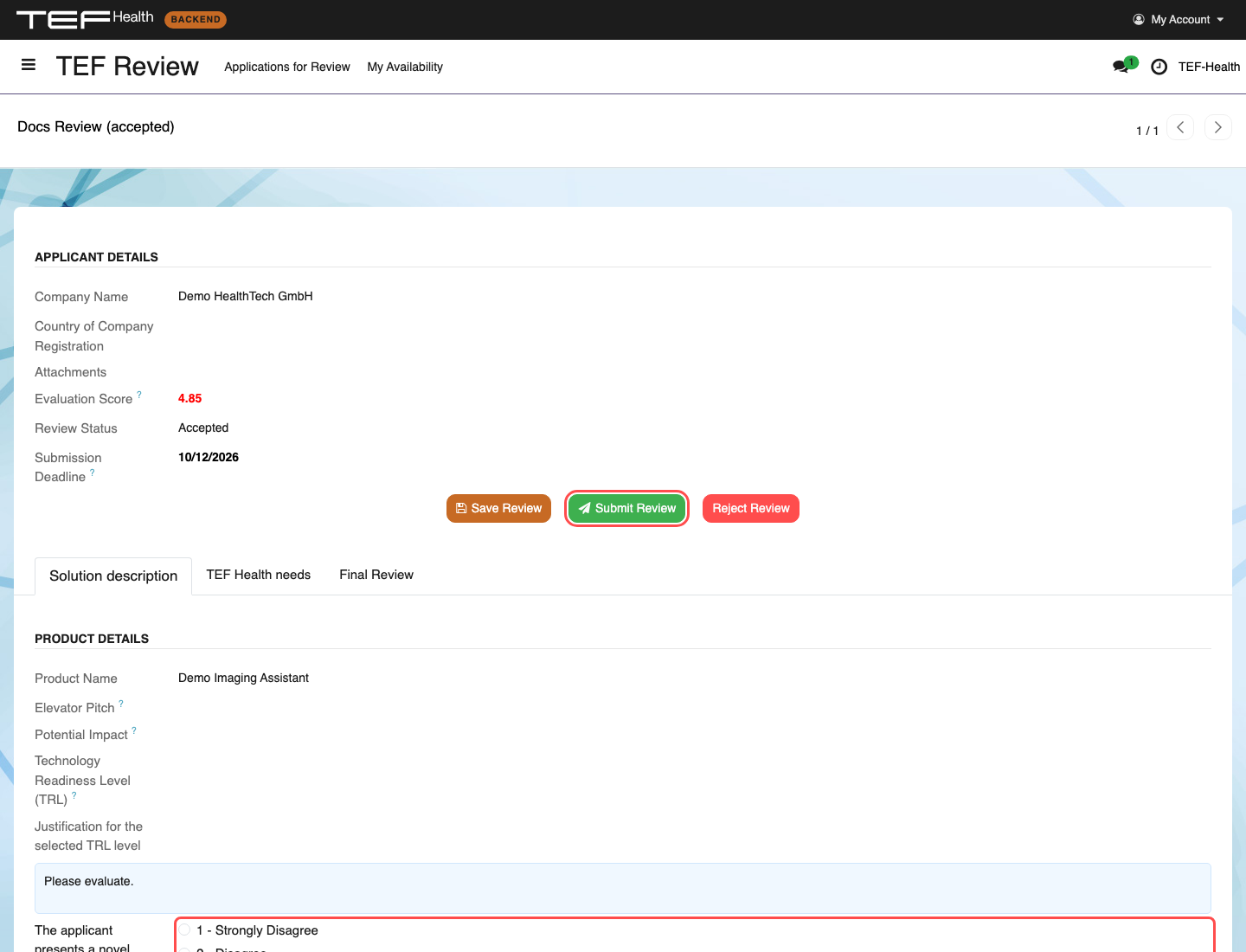
Watch: reviewing an application, end to end
Each call uses the review form that fits it. The two short screencasts below walk through a full review — from the dashboard quicklink, through Accept, scoring every criterion, the overall comment and conflict-of-interest confirmation, to Submit.
Call #2 — AI / Robotics (standard criteria)
The legacy form: score the weighted criteria across the Solution description and TEF Health needs tabs, add your comments, then confirm and submit on the Final Review tab.
Call #3 — Health Data Hub (dynamic criteria)
The HDH form: review the application context tabs, then rate every rubric row on the Evaluation tab — one per call criterion, grouped by category — before the overall comment and submission.
Communication
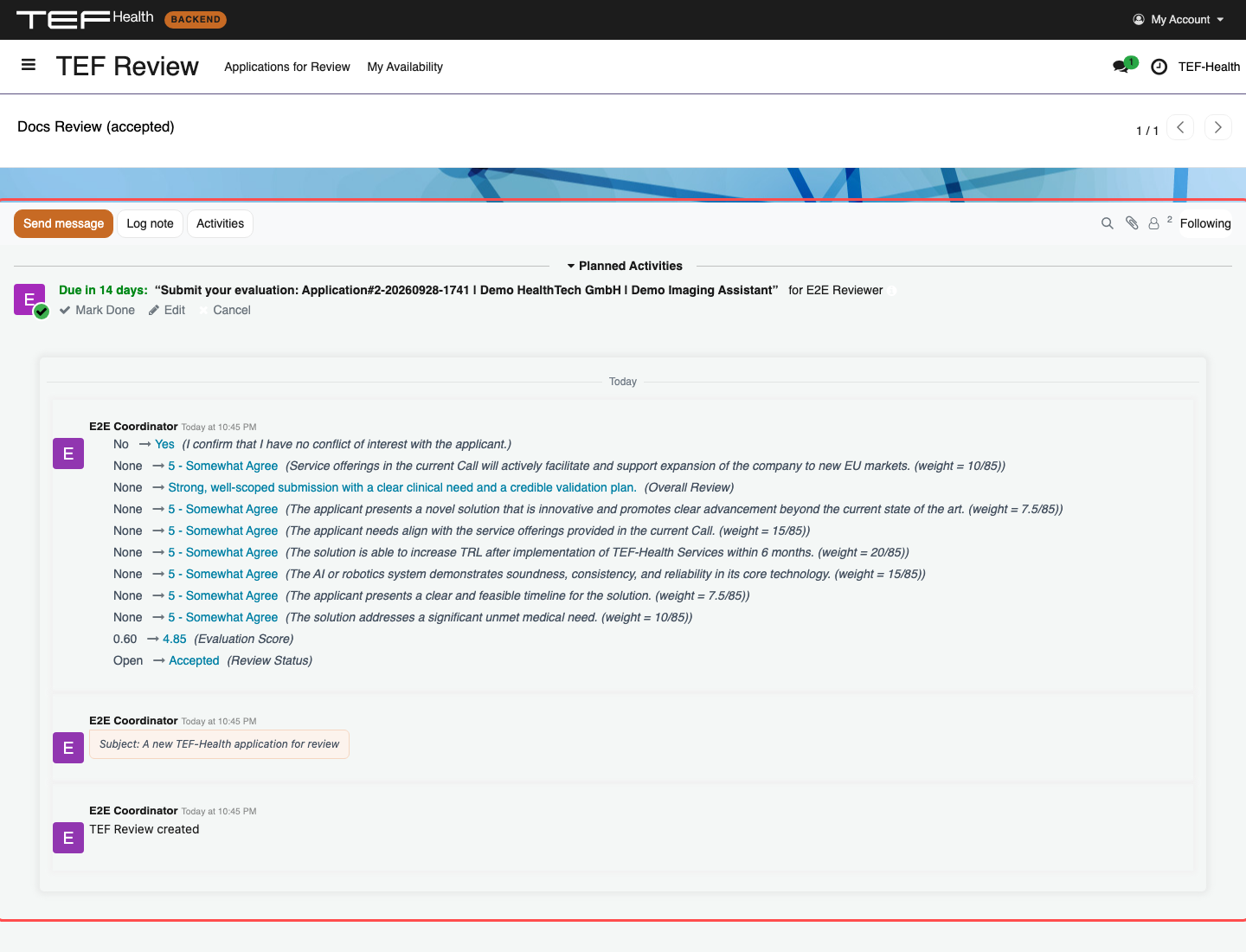
Communication between reviewers and Front Office Agents — about assignments or technical issues — happens through the Chatter on each review record.
- The Chatter sits at the bottom (or right-hand side) of the review form.
- It reaches the Front Office Agents who assigned you to the application.
- The full history of messages and email notifications is visible there and can be replied to in place.
After submission
Once your review is submitted it is recorded against the application. Two submitted reviews are the independent eligibility check a Service Provider needs before it may sign a contract at the discounted Call price. The applicant may already be talking to providers while you review, but no discount can be agreed until your review and one other are in.