Service Catalogue
The TEF Service Explorer lets you browse, search and filter the services offered across the TEF-Health consortium, then either request a service directly or apply for a discount through an open call.
Opening the catalogue
Go to /services, or click Services /
View services from the portal home. The catalogue is public — you can browse it
without logging in, but you need to be signed in to see pricing, select a service,
or apply for a discount.
Give it a moment to load
The explorer fetches the full catalogue in the background. After the page opens, wait a second or two for the services to appear before you search or filter.
Searching and filtering
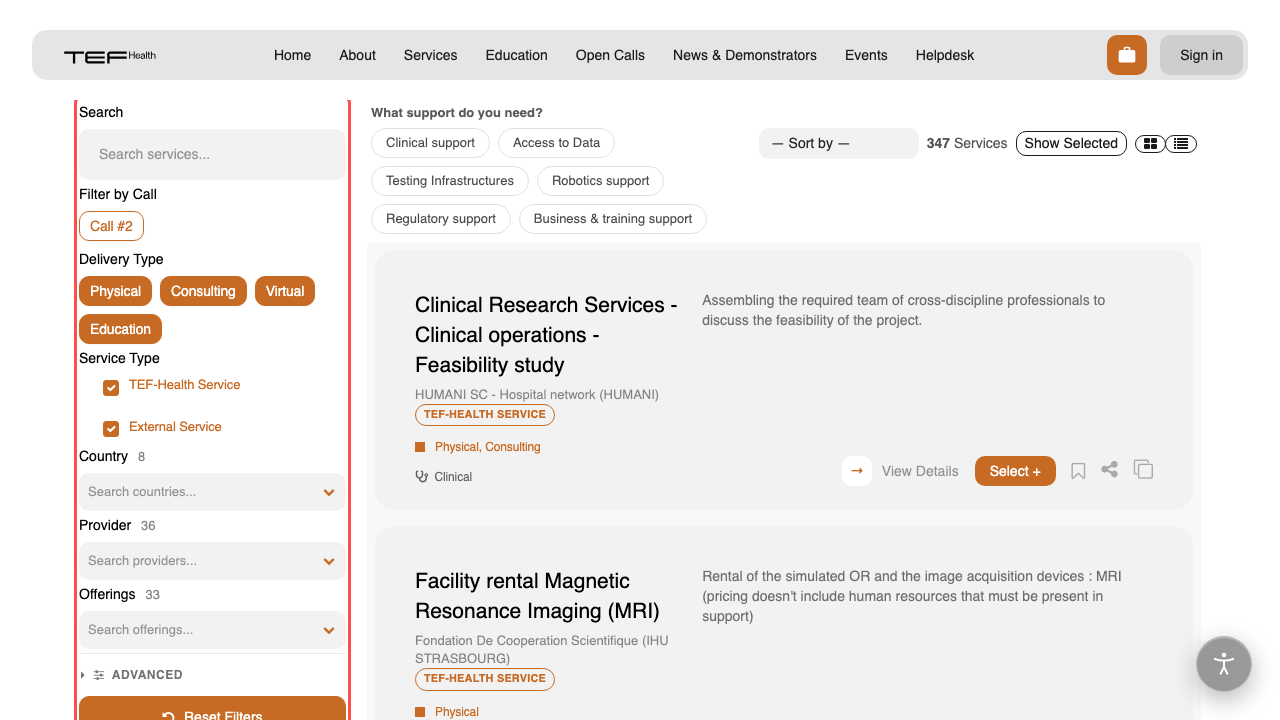
The left-hand panel filters the list:
- Search — free-text box (placeholder "Search services...") matching service name and description.
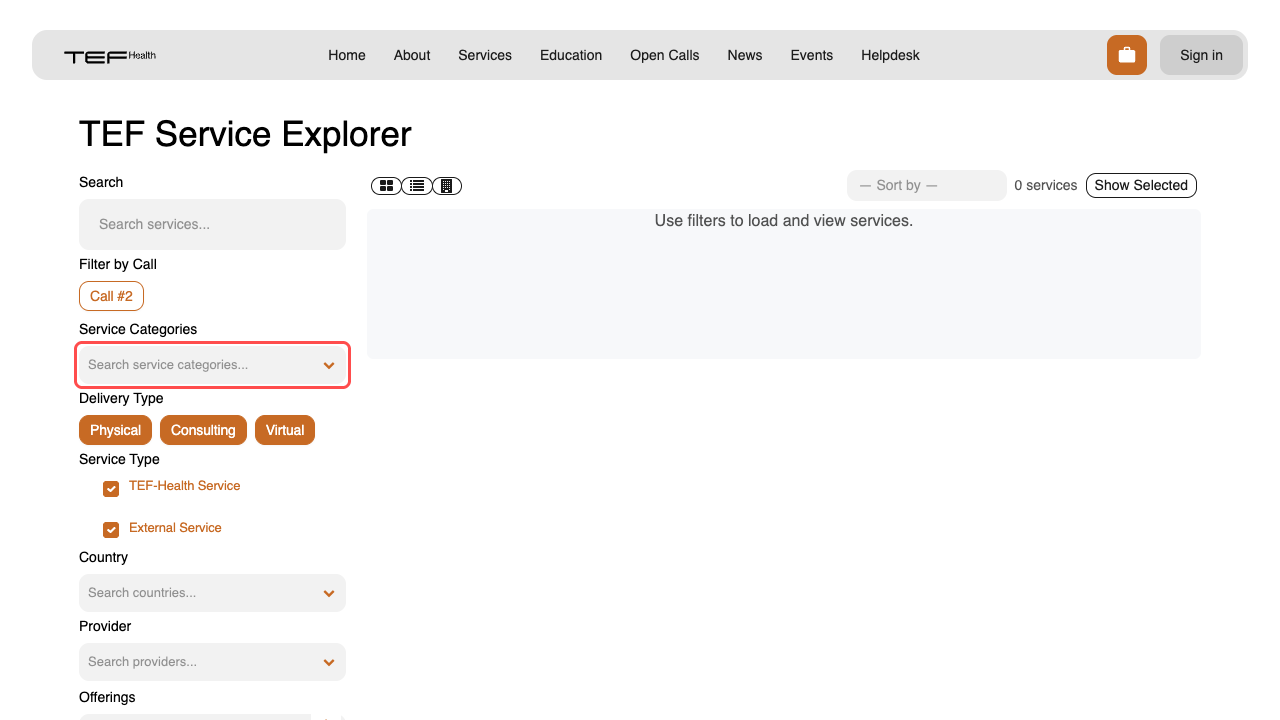
- Service Categories — the service-categories taxonomy (what the service is); the primary facet, so it leads the panel.
- Delivery Type — how the service is delivered: Physical, Consulting, or Virtual.
- Service Type — TEF-Health service or External service.
- Country — countries that have at least one published service.
- Provider — filter by the providing institution.
- Offerings — the catalogue's offering types, multi-select. Each carries its full agreed name, such as Data Provisioning (real world and synthetic). That is the same vocabulary as the TEF-Health Knowledge Graph, so a count taken here matches one taken there.
- Call — narrow to services eligible for a specific open call (only currently open calls are listed, matching the calls page).
Country, Provider and Offerings show a number next to their label — how many countries, providers and offering types the services currently listed come from. That number counts distinct values, never services: Offerings 35 means the listed services carry 35 different offering types between them. The numbers follow every filter you set: pick one country and it reads Country 1, while Provider tells you how many institutions in that country still have something to offer. Inside each dropdown every entry additionally carries its own count of matching services.
Every filter you set is saved into the page URL, so a filtered view can be shared — see Sharing a filtered view below.
Working the dropdowns
Country, Provider and Offerings hold long lists, so each opens as a searchable dropdown. Click the box, type to narrow the list, and click a row to tick it. Every value you pick becomes a chip in the box; click the × on a chip to drop that one value. A facet near the foot of the panel opens upwards, so the list is never cut off by the bottom of the screen and the buttons underneath stay reachable.
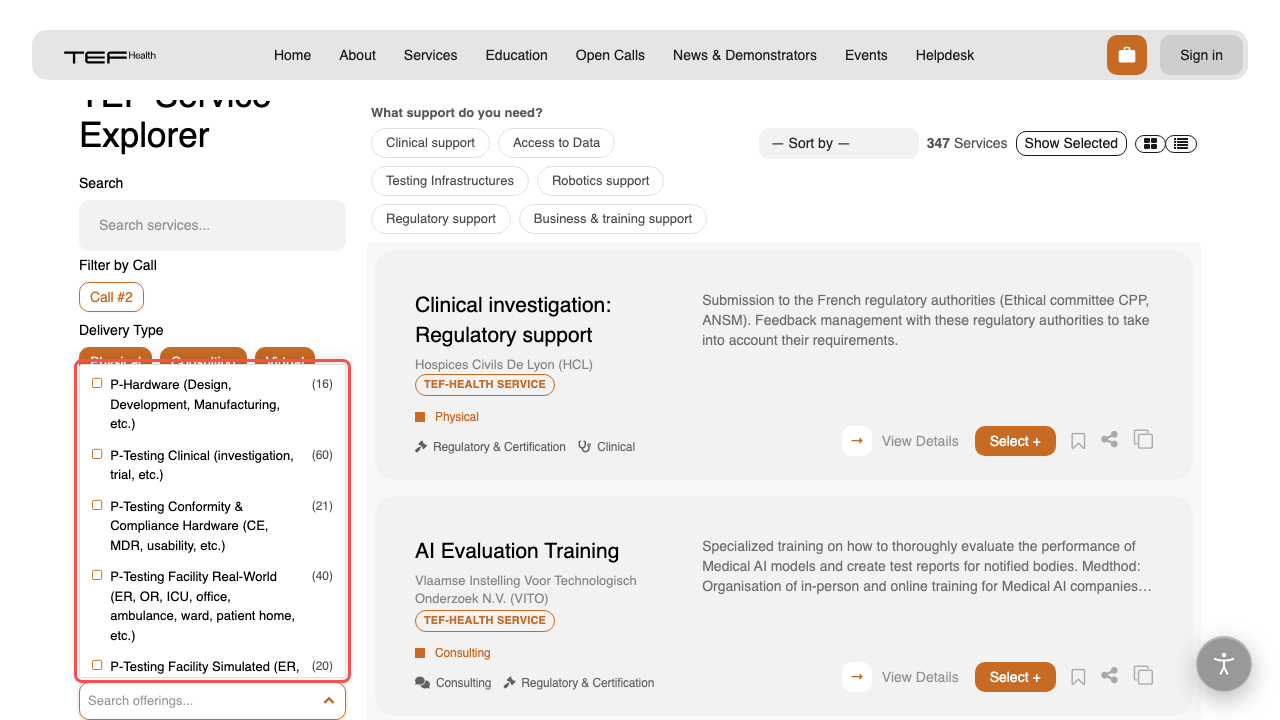
The dropdowns work from the keyboard as well: ↑ ↓ move through the list, Enter ticks the highlighted value, Backspace on an empty search box removes the last chip, and Escape closes the list.
Filtered down to nothing?
When no service matches, the results area says so and offers Clear all filters — one click puts the full catalogue back, the same as Reset Filters in the panel.
On a phone the panel is folded away behind a Filters button, which carries a number badge counting how many filters are currently narrowing the list.
The results can be viewed as cards, a table, or grouped by institution using the view toggle above the list.
Sharing a filtered view
Any combination of filters can be shared as a link — the recipient opens exactly the same filtered catalogue. For example, to share all business-related services:
- Go to
/services— use the real page address, not a copied backend or search link. - Apply your filters — e.g. tick Business (market readiness, monitoring, feasibility, etc.) under Offerings (combine with any other filters, such as a Delivery Type or Country).
- Copy the URL from the browser's address bar and share it. It now carries your filters, as in
/services?offering=business-market-readiness-monitoring-feasibility-etc, so opening it re-applies them. A medical domain travels by name, as in/services?medical_domain=Oncology, which is also where a domain badge in the homepage's Impact section leads.
The URL updates as you filter
You don't need to do anything special — each filter you tick or untick is written
into the address bar straight away. Just copy whatever is there once the list shows
what you want. Reset Filters clears it back to the plain /services.
Click a service to open its detail view with the full description, keywords, standards and certifications. The URL gains that service's identifier while the detail view is open, so the link you copy from the address bar reopens exactly this: your filters, with that service on top. Closing the detail view drops the identifier again, and so does the browser's Back button.

Viewing details, selecting and bookmarking
A service's detail page (/services/<id>) shows everything about the service. What you
can do there depends on whether you are signed in:
- Anyone can read the full description, provider, keywords, standards and certifications.
- Signed-in users additionally get:
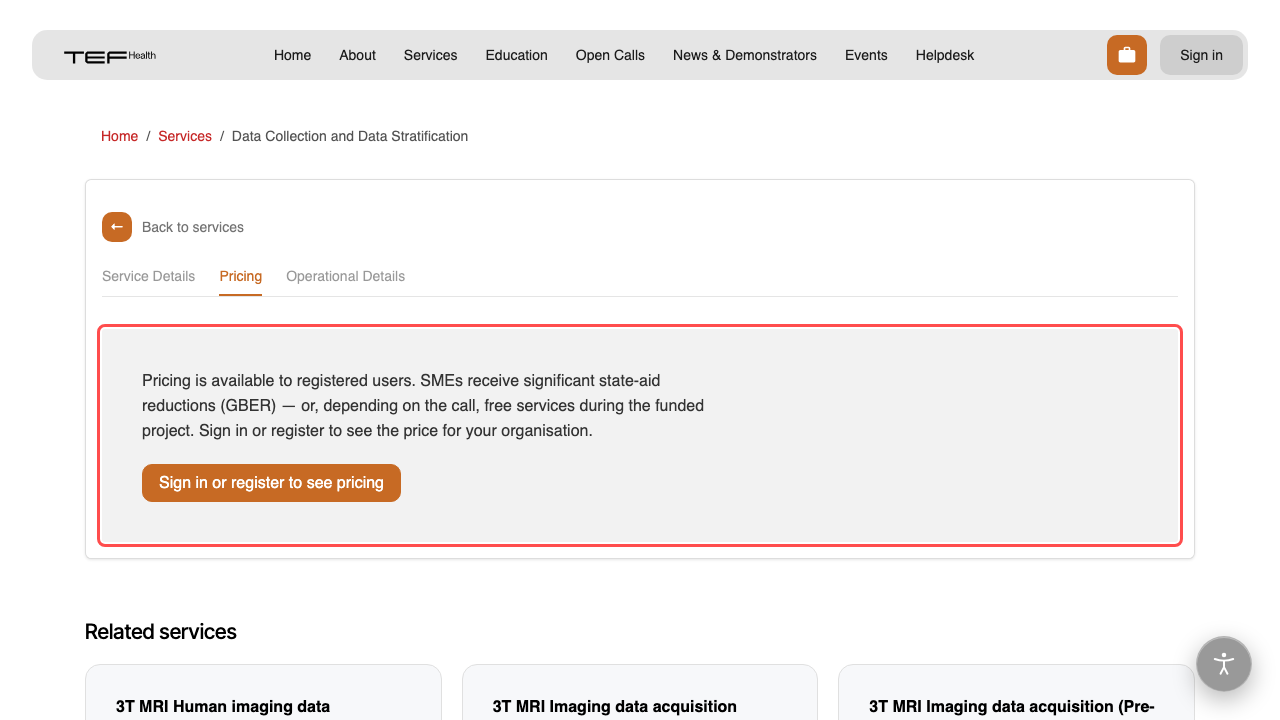
- Pricing — full and reduced (SME / state-aid) prices on the Pricing tab. Logged-out visitors see a prompt to sign in or register instead.
- Select / Add to Application — add the service to your selection, ready to request or apply for a discount.
- Bookmark — save a service for later without selecting it (the bookmark icon).
Back in the explorer, use the panel controls Show Selected and Show Bookmark to narrow the list to just your selected or bookmarked services.
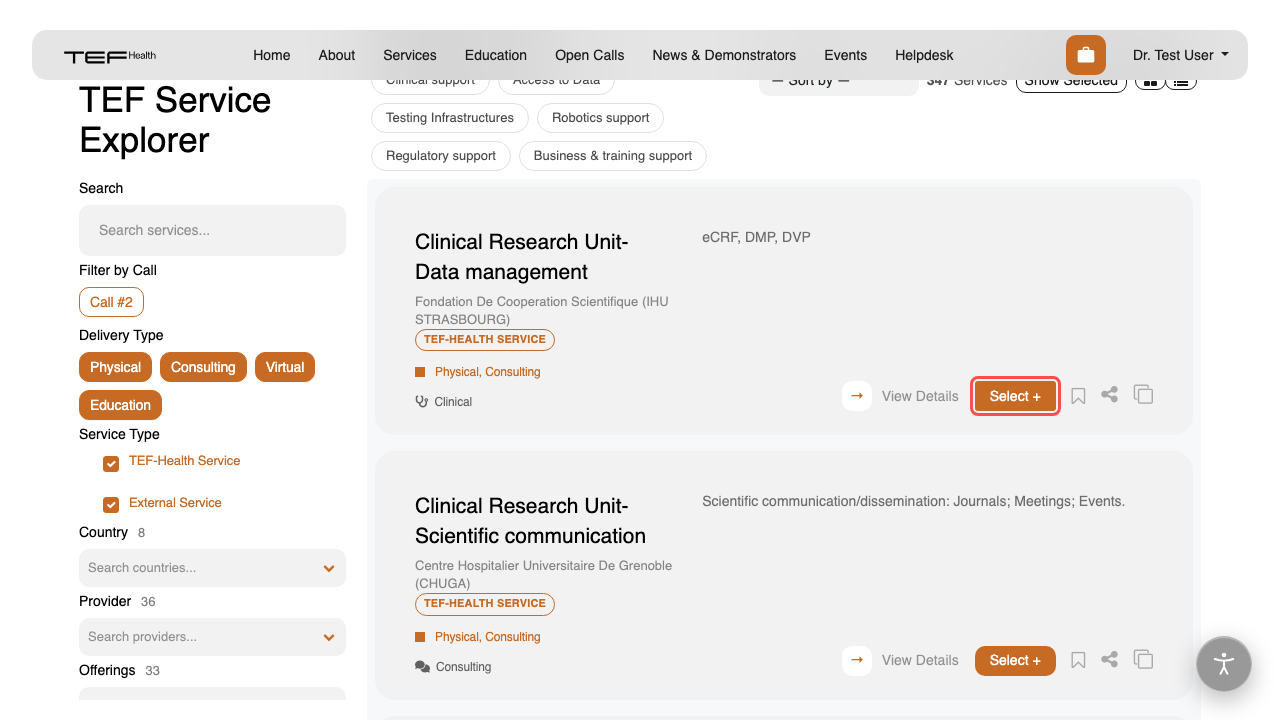
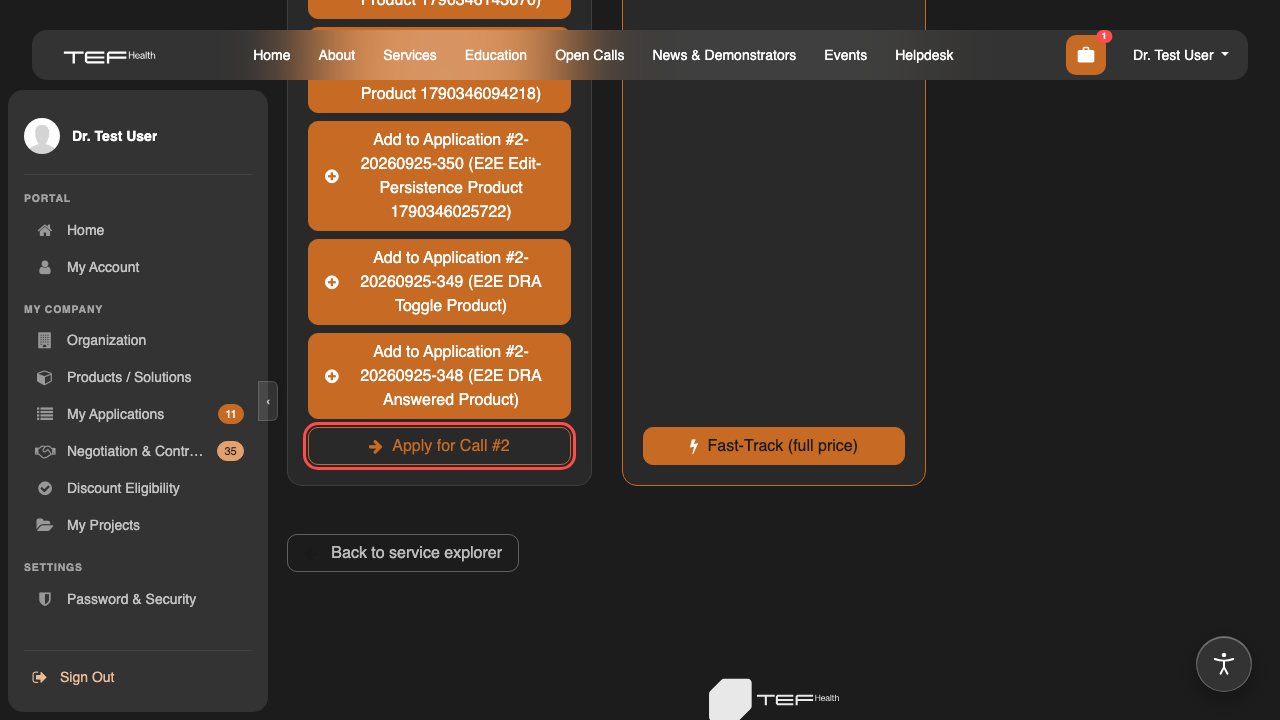
When you are ready, choose how to proceed:
- Fast-Track Service Request (Full Price) — request the service directly at full price.
- Apply for Discounts — submit an application for a discount via a TEF-Health open call.
Sharing and linking to a service
Two links lead to the same service, and both are permanent:
/services?popup=<service ID>reopens the catalogue with that service's detail view on top. This is the address your browser shows while a service is open, and the one the copy and share icons hand out./services/<service ID>is the service's own page, without the catalogue behind it. The expand icon in the top corner of the detail view opens it.
The identifier belongs to that service for good, so both keep working after the service is renamed, re-priced or re-described.
To share one service:
- Open the service from the catalogue list.
- Copy the link. Either take the URL from the browser's address bar, or click the copy icon (two overlapping squares). Both give you the same link, and the icon confirms with a brief Copied!.
- Send it. Anyone can open the link, including people outside TEF-Health.
The copy icon sits on every service card too, so you can take a link without opening the service first. Beside it, the share icon offers that link through your phone or tablet's share sheet, and copies it to the clipboard on a desktop.
Because these pages are public, anyone who opens your link sees the full service description straight away. They are prompted to sign in only when they want to see pricing or select the service for a request or application.
Older links keep working
Links of the form /services/<number> and /portal/service/<number> still open the
same service, so existing bookmarks and emails keep working.
Sign in to see pricing and to request
Browsing service descriptions is open to everyone. Pricing, selecting a service and starting a request or application require you to sign in (or register) first — SMEs receive significant state-aid reductions (GBER), so the price is calculated for your organisation once you are logged in.