Sign up for an account
This is the quickest route to access: you create your account yourself on the sign-in screen, with no staff involvement. Registration and use of the platform are free of charge.
Looking for the other route?
If you arrived via a QR code or an event and also want a team member to follow up, use Get in touch instead.
Watch: how to register (under a minute)
The step-by-step guide follows below.
Step 1: Open the platform and choose Register
Browse to the platform and choose to log in. A plain visit to the login URL takes you to the single sign-on screen. Use the Register link to create a new
Browse to the platform and choose to log in. A plain visit to the login URL takes you to the single sign-on screen. Use the Register link to create a new account.
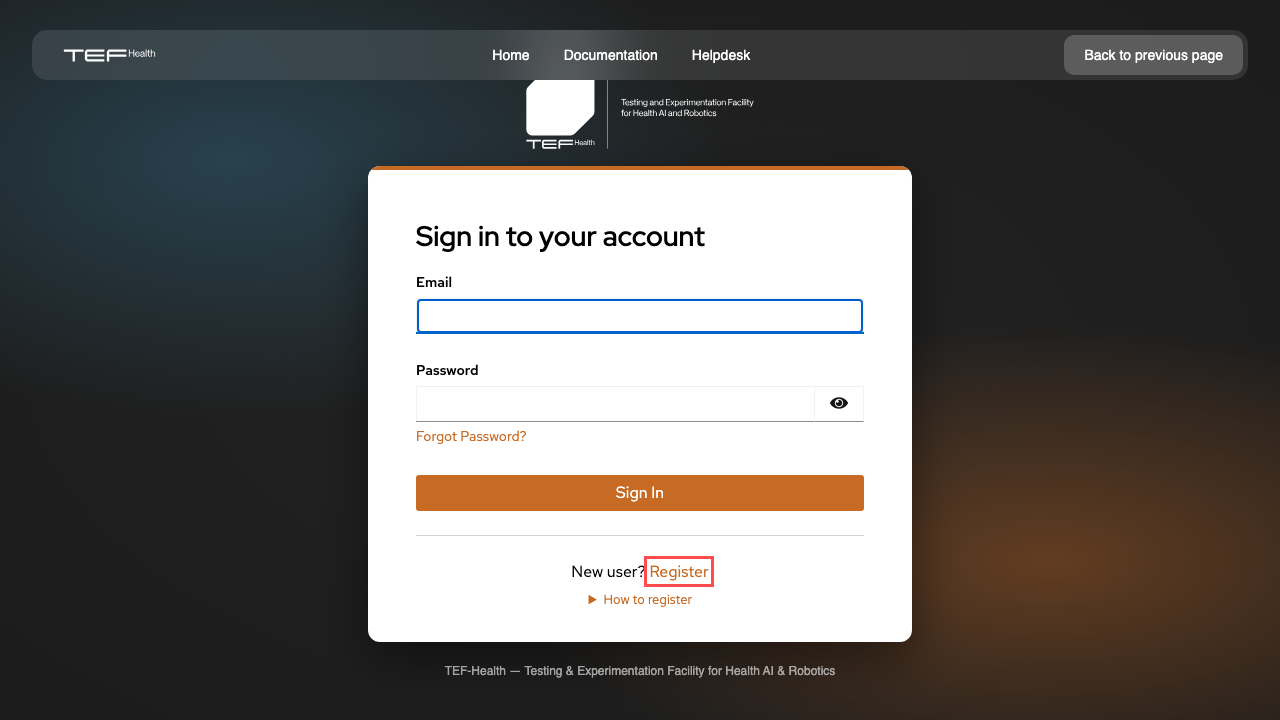
Step 2: Complete the registration form
Provide your details:
- Email — a valid address you can receive mail at (this is also your username).
- Password — minimum 8 characters, including upper- and lower-case letters, a number and a special character.
- First name and Last name.
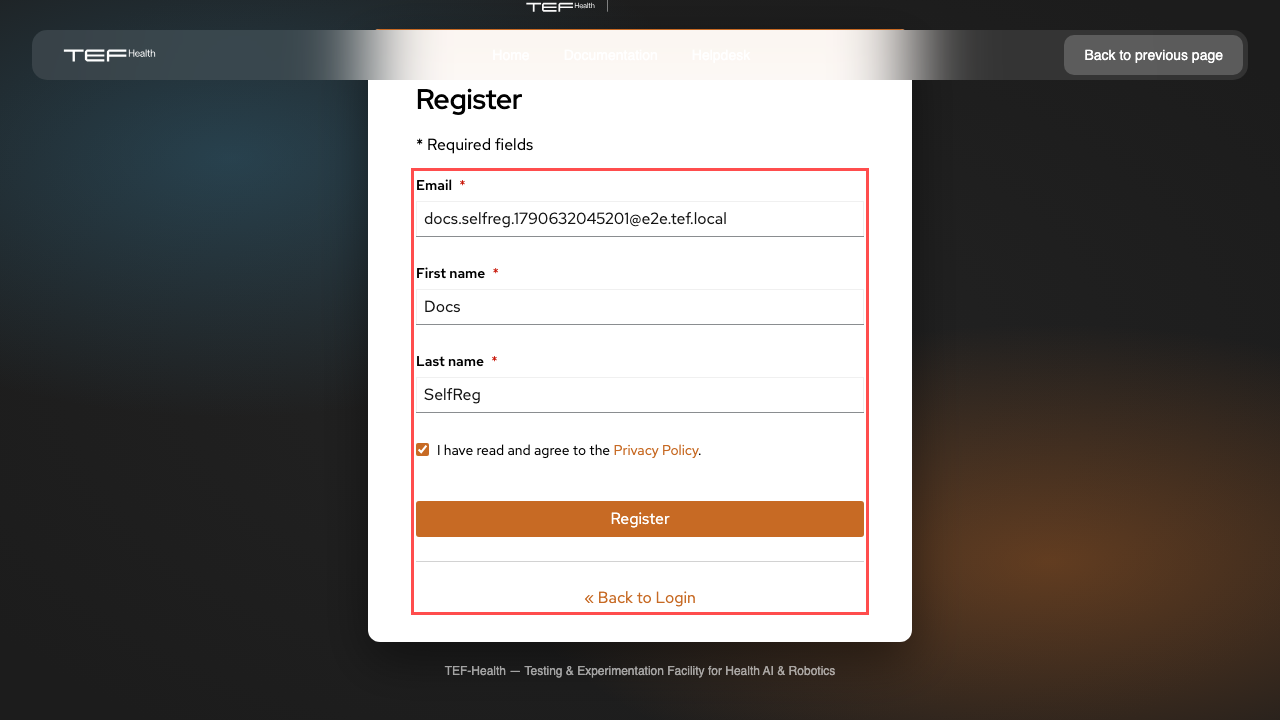
Step 3: Verify your email
After submitting, you receive a verification email. Open it and follow the link to confirm your address — this also completes your sign-in.
Check your spam folder
If the verification email does not arrive within a few minutes, look in your spam or junk folder.
Step 4: Grant consent
The first time you sign in, you're asked to consent to the processing of your personal data (see the Data Protection Information):
- TEF-Health Platform access — required to use the platform.
- Communication about TEF-Health — optional.
- Receive marketing emails — optional. If you tick this, you'll get a confirmation email; your subscription is only activated once you click the link in it (double opt-in).
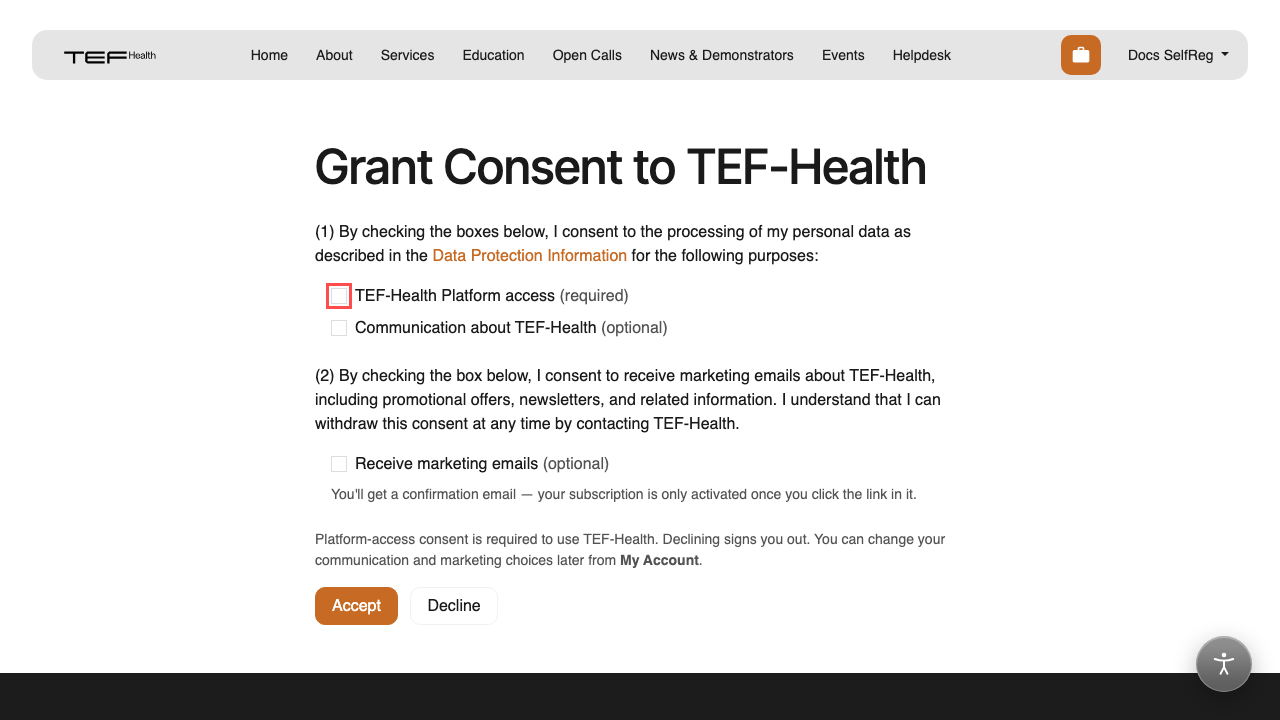
You can change your communication and marketing choices later from My Account.
Step 5: You're in
After you accept, your account is ready and you land on your portal home at
/my/home.
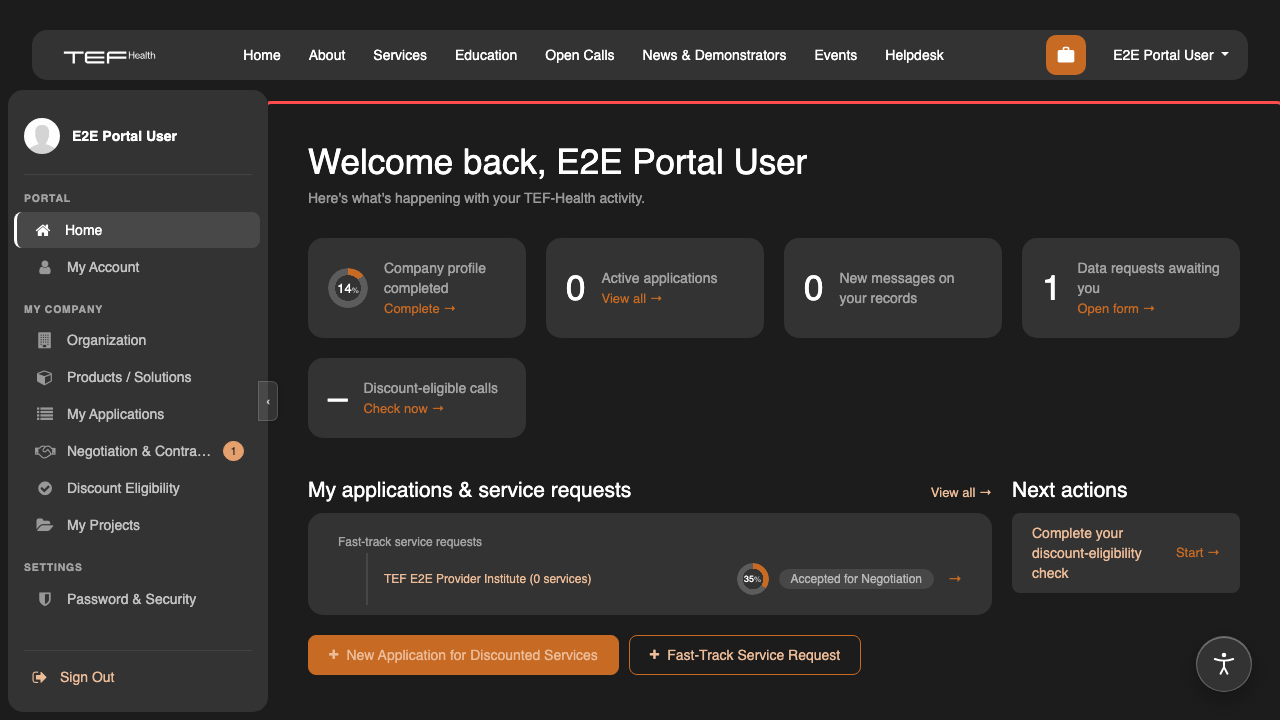
You now have the base Applicant role. See Roles & permissions to request more, or go back to the account overview.