Get in touch (and create an account)
This route pairs account creation with a short enquiry, so a team member can follow up. Use it if you reached the platform via a QR code or an event link. Registration and use of the platform are free of charge.
Just want access, no follow-up?
Use Sign up instead — it's the quickest route.
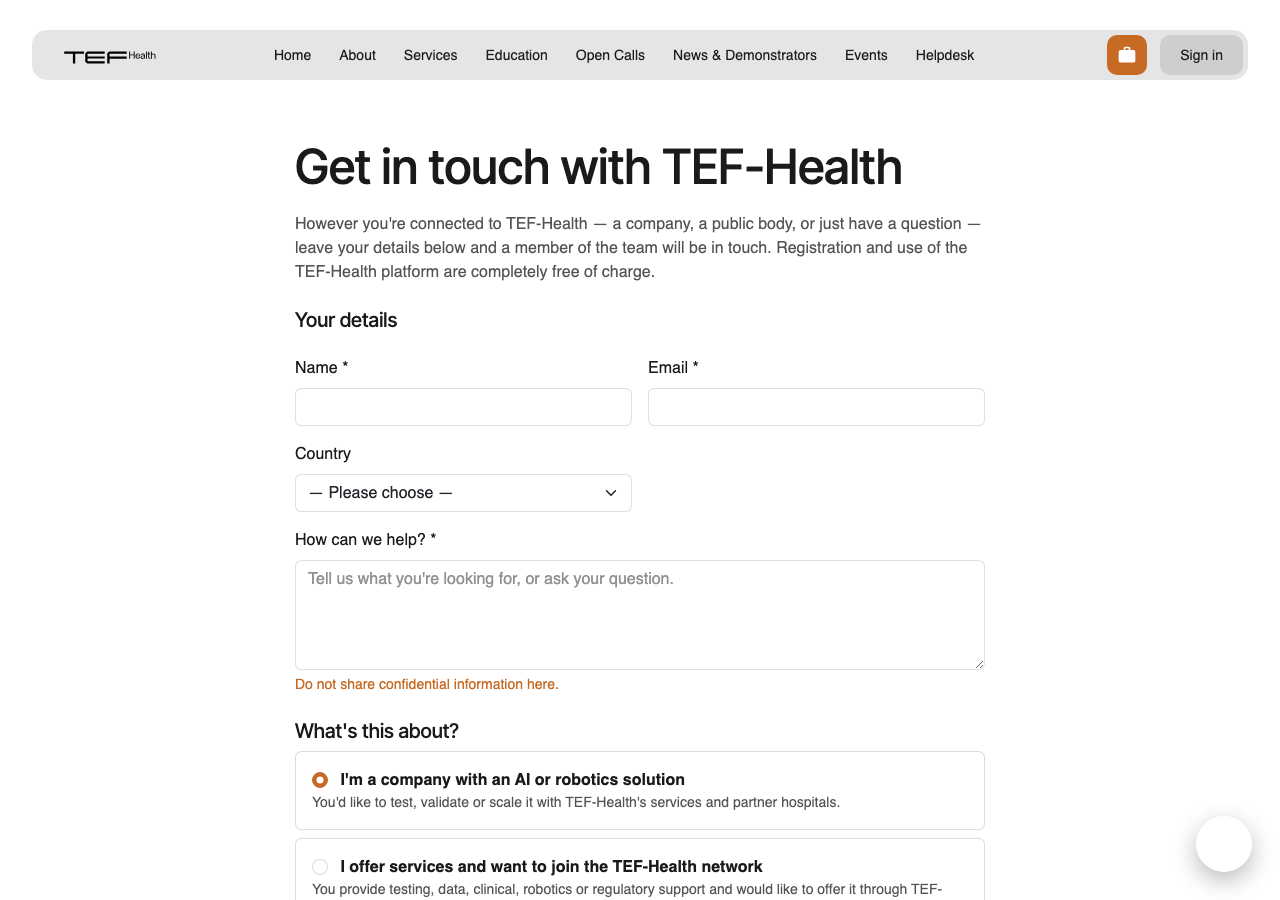
The public "Get in touch" form at /get-in-touch captures your interest (and
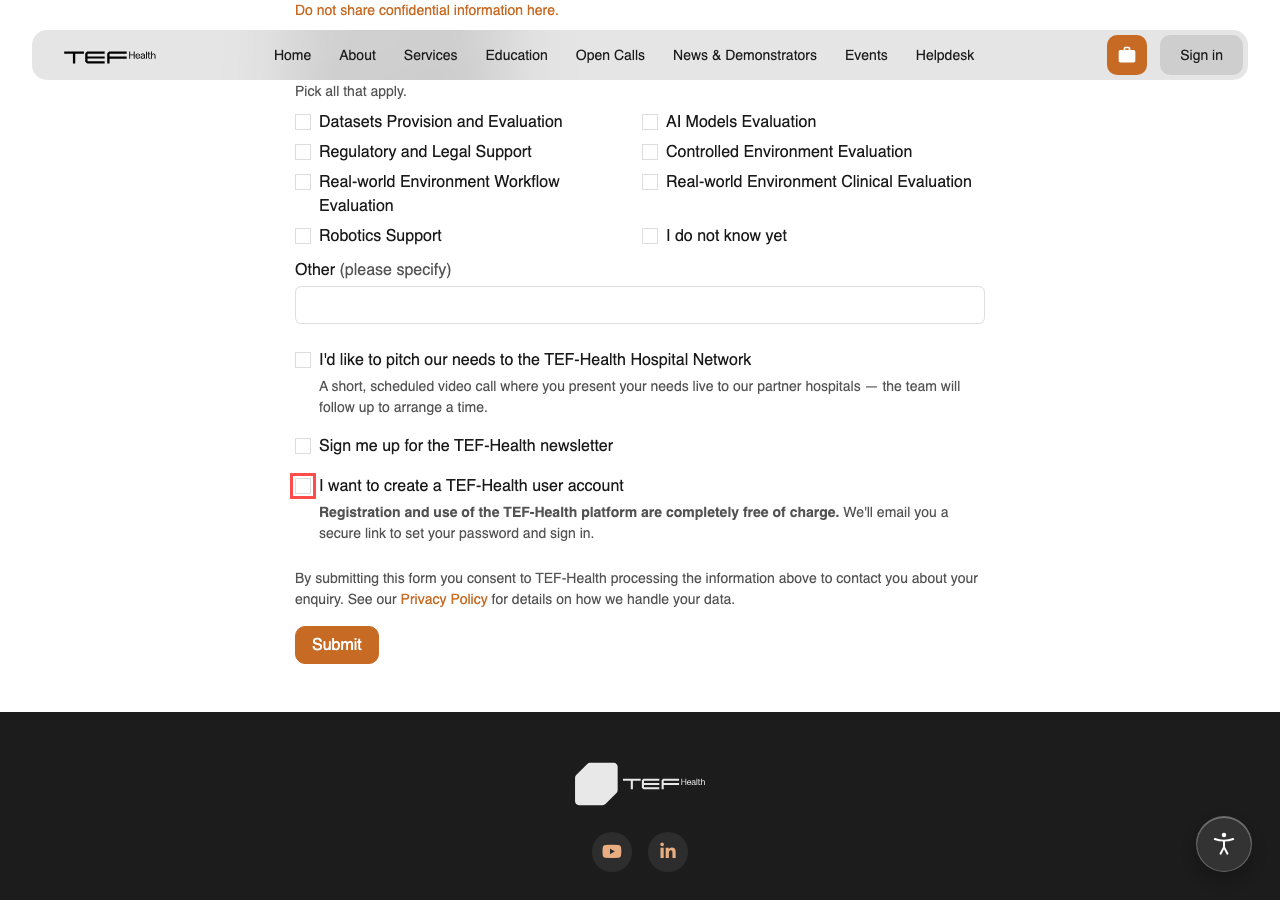
can sign you up to the newsletter). To also get a login, tick
"I want to create a TEF-Health user account".
You can optionally tell us about your AI solution while you're here — a solution name and a brief description (its purpose and maturity level). If you fill these in, we record your solution against your organisation so the team can pick up the conversation faster.
Don't share anything confidential
These fields are a short, non-confidential summary. Leave out anything sensitive — you can share the details privately with the team later.
You can also tick "I'd like to pitch our needs to the TEF-Health Hospital Network". This flags your enquiry for a short, scheduled video call where you present your needs live to our partner hospitals; the team follows up to arrange a time.
Step 1: Fill in the form and tick create an account
The solution name and description are optional; everything else works the same whether or not you ask for an account.
Step 2: Submit
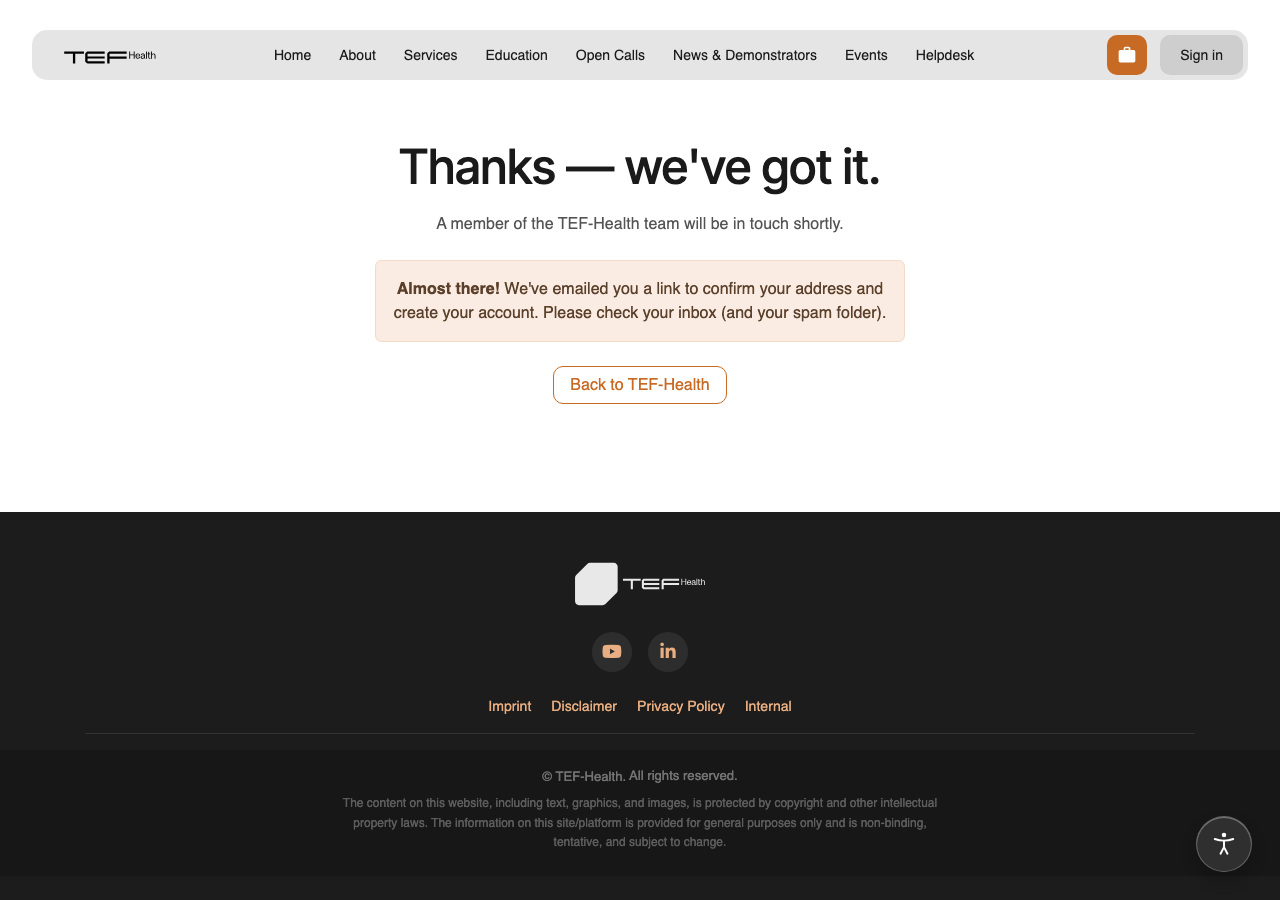
You'll see a short confirmation. A team member receives your enquiry, and — because you asked for an account — we email you a link to confirm your address. No account is created until you click it (this protects against someone requesting an account for an address that isn't theirs).
Step 3: Confirm your email
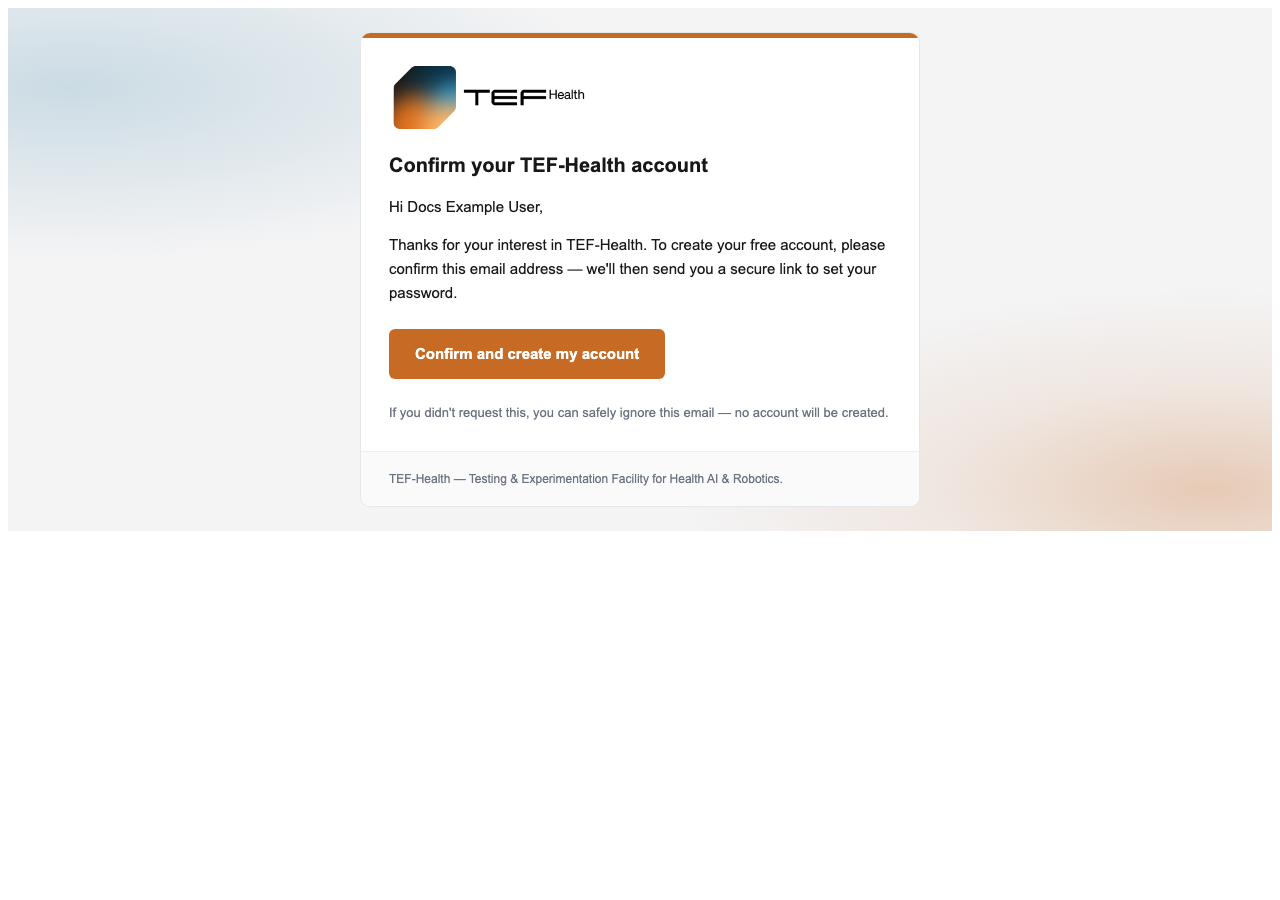
Open the "Confirm your TEF-Health account" email and click the link. This proves the address is yours and creates your account.
Check your spam folder
If the email doesn't arrive within a few minutes, look in your spam or junk folder.
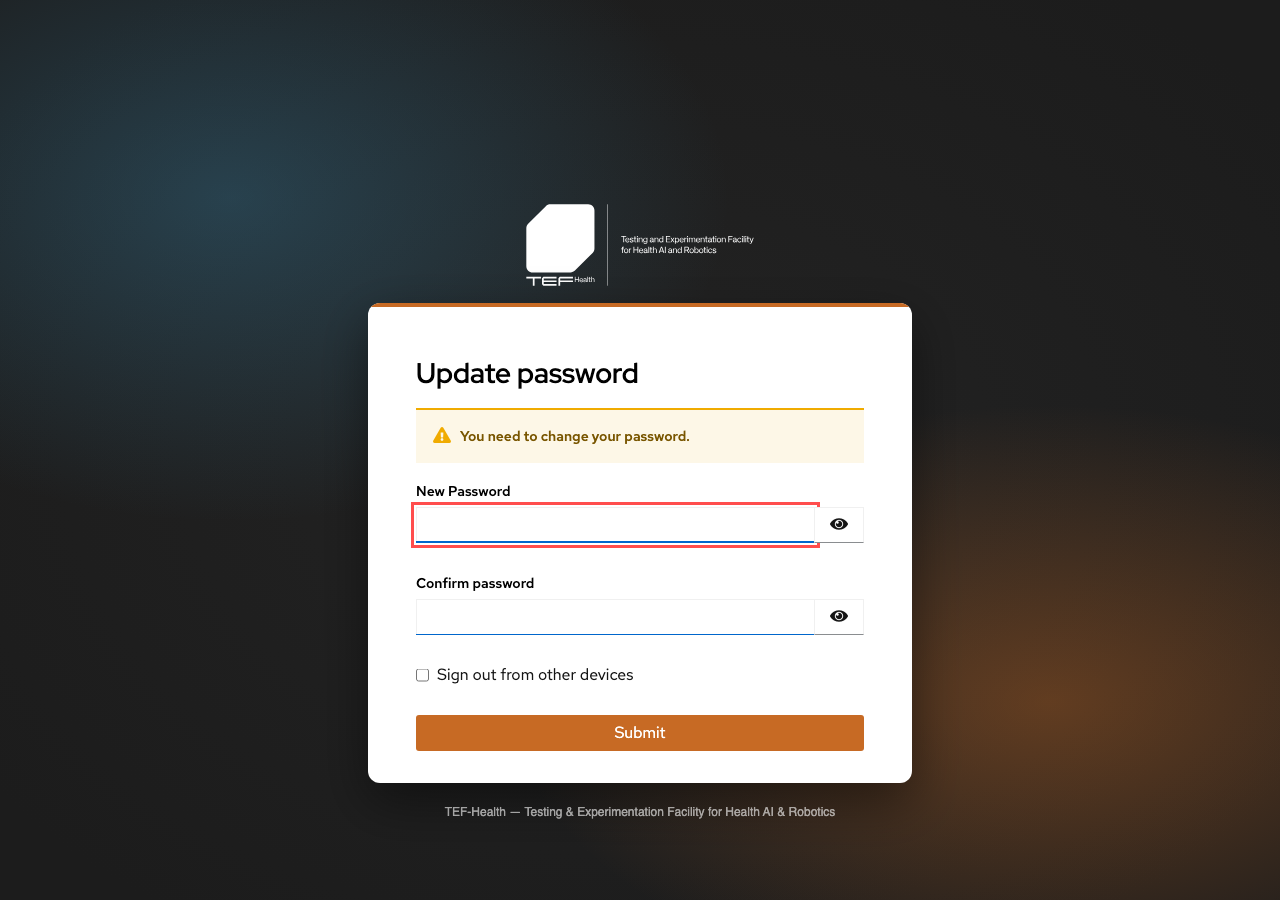
Step 4: Set your password
Once confirmed, you're emailed a secure link to set your password. Follow it (click "Click here to proceed" if prompted) and choose a password. Your credentials are stored securely in the single sign-on system, not in the platform itself.
Step 5: Sign in
Sign in with your email and the password you just set; you land on your portal home
at /my/home.
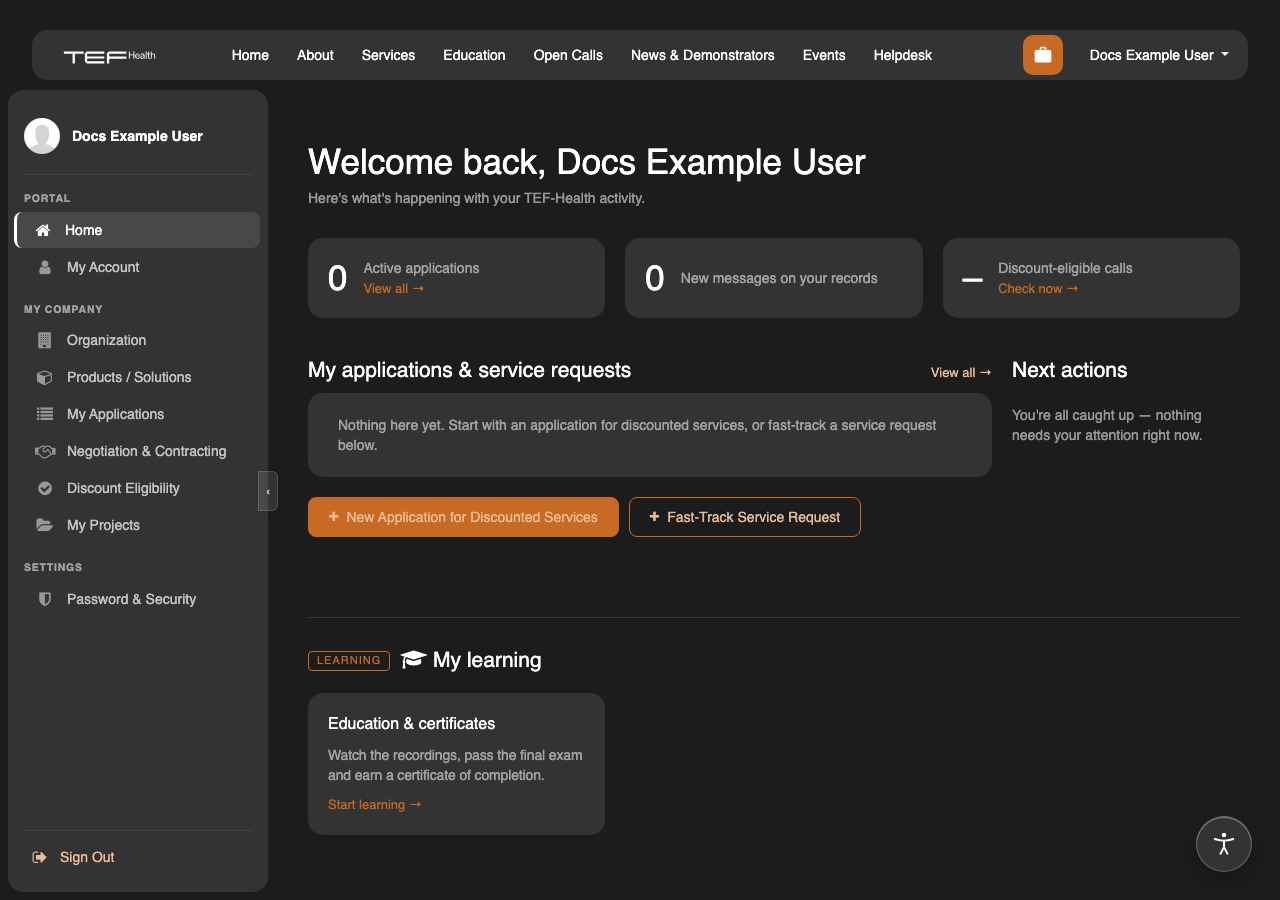
You now have the base Applicant role. See Roles & permissions to request more, or go back to the account overview.